Estimate Mass and Inertia from a Mesh
A simulator needs to know how heavy each link is and how that mass is distributed. Without it, a robot cannot fall, push, balance, or be driven by a controller in a believable way. ARMOR can estimate mass and inertia from a link’s geometry when a URDF does not provide them, and it can fix an inertia tensor that MuJoCo would otherwise refuse to load.
Both tools work on the properties described in Links: the mass, the center of mass origin, and the inertia tensor of each link.
Missing or Zero Mass in a URDF
Many published URDF files are written for visualization or kinematics only, so their mass data is missing or unusable:
- Some set every mass to zero. NASA/JPL’s Perseverance and Ingenuity are examples.
- Some have no
<inertial>block on most links at all. - Some carry a tiny placeholder value, or a real mass with an inertia tensor of zeros.
ARMOR treats a link as missing mass data when its mass is at or below about one milligram, or when the diagonal of its inertia tensor is effectively zero. A tiny placeholder mass is not mass data, so a robot full of them is still offered an estimate.
Estimate from Geometry
Each link’s inertial editor has an Estimate from Geometry button. Open it under Links, expand a link, and choose its Inertial tab, where the button sits with the Has Inertial? toggle.
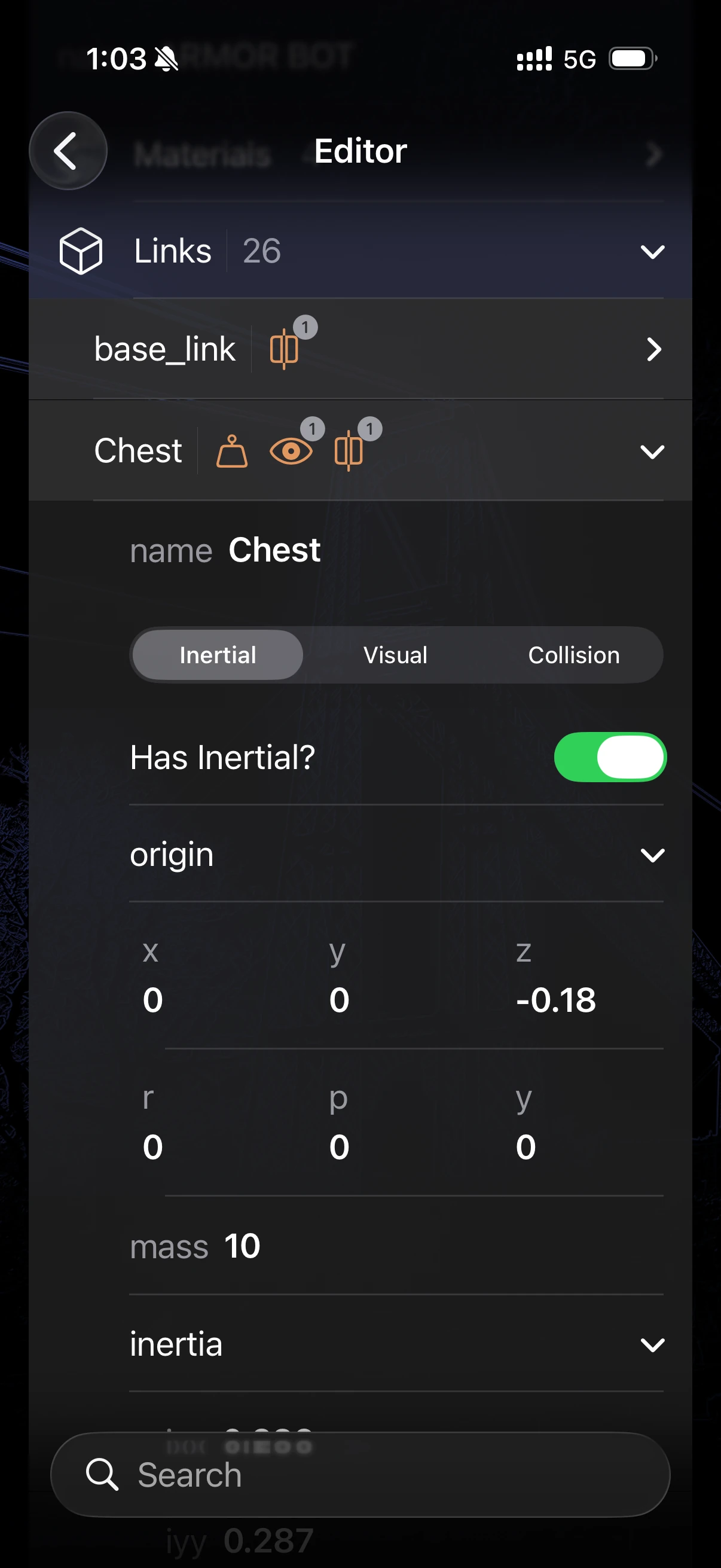
The Inertial tab of a link. The origin, mass, and inertia fields shown here are what Estimate from Geometry fills in. Its button, not visible in this capture, sits with the Has Inertial? toggle.
The estimate works from the actual 3D shape of the link:
- The mesh is split into tetrahedra, one for each triangle of its surface.
- The volume, centroid, and inertia of each tetrahedron are computed, then summed over the whole body with the parallel axis theorem.
- The volume is multiplied by a density of 1,000 kg/m³ to get a mass.
If a mesh is not watertight, or cannot be measured, ARMOR falls back to the mesh’s bounding box automatically. Box, cylinder, and sphere shapes are computed exactly.
A link with several collision or visual elements is measured as a whole, and the result describes the combined body. By default the collision geometry is measured, because that is the body MuJoCo simulates. A link with no collision shapes is measured from its visuals instead.
The button replaces the link’s mass, center of mass, and inertia tensor, and turns Has Inertial? on. If the link has no visual or collision geometry, the button is dimmed and shows Requires geometry.
Estimate All Masses
To estimate every link at once, use Estimate All Masses at the bottom of the Links section in the robot editor.
By default it measures only the links that are missing mass data and leaves the others alone. If every link already has believable mass data, ARMOR asks Recalculate Every Link? first. Choose Recalculate All to replace all of it with estimates, or Cancel to keep what you have.
Either way the Estimate Mass sheet opens. It shows progress while it measures (for example “Measuring 12 of 98”), which matters for robots with large meshes.
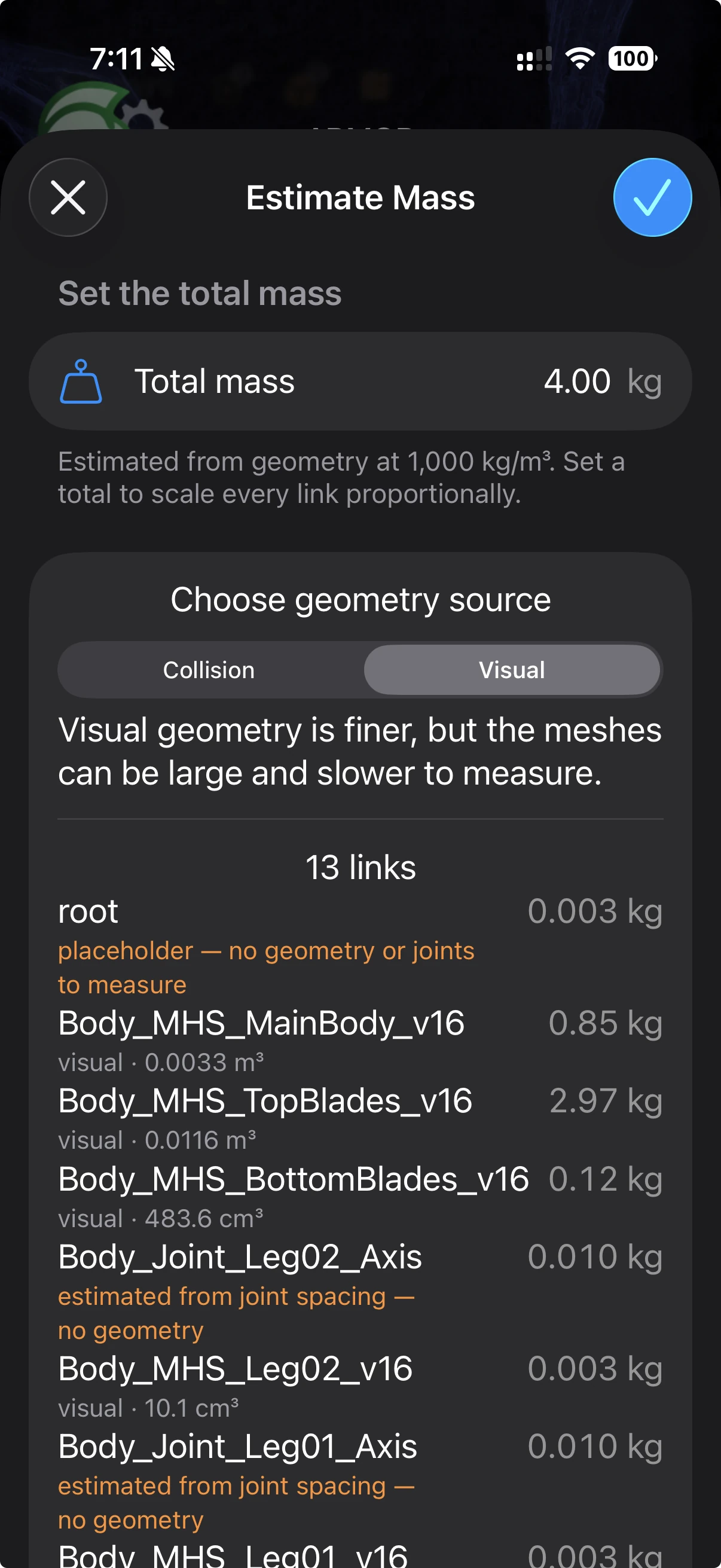
The Estimate Mass sheet for a 13-link model, with Visual selected as the geometry source. The orange rows are guesses made without geometry. Review the result, adjust the total or the source, then apply it with the check button.
| Control | What it does |
|---|---|
| Total mass | The sum of all estimated link masses, in kg. Type a new total and every link is rescaled in proportion, with its inertia tensor scaled by the same factor. A value that is not a positive number is ignored and the field resets. |
| Choose geometry source | Picks which geometry to measure: Collision (the default) or Visual. Visual geometry is finer, but its meshes can be large and slower to measure, and ARMOR warns you when a source is large. Links with no collision shapes fall back to their visuals. |
| Link list | One row per link with its estimated mass and what it was based on. |
| Cancel | The close button. Dismisses the sheet and changes nothing. |
| Apply | The check button. Writes the estimates into the robot. |
Links with no geometry
Some robots describe many links with no geometry at all (most of Perseverance’s links are like this). Those links are still given a mass, and the list says where each number came from:
- Collision or visual with a volume: measured from that geometry.
- Estimated from joint spacing: treated as a slender bar as long as the farthest joint attached to the link.
- Placeholder: no geometry and no joints to measure, so the link gets a small valid mass of 0.01 kg.
The last two are shown in orange. They keep the model simulatable, but they are guesses.
Setting the real mass
A solid-volume estimate at 1,000 kg/m³ treats every link as a solid block of water. Real robot links are mostly shell and empty space, so the estimated total is usually too heavy. If you know the robot’s real weight, type it into Total mass before you apply.
After a Gallery Import
When you import a robot from the gallery and none of its links has usable mass data, the import’s final screen explains that the robot cannot be simulated as it is and offers Estimate Mass…. It opens the same sheet, set to estimate the links that are missing data.
Fix Invalid Inertia
MuJoCo refuses to compile a link whose inertia tensor is physically impossible. The error reads Inertia must satisfy A + B >= C. It means that the three principal moments of inertia of a real body can never break the triangle inequality: each one must be no larger than the sum of the other two. The STAR1 humanoid is an example of a published robot that triggers it.
ARMOR can correct the tensor for you, in three places.
On a single link
When a link’s current inertia would be rejected, a Fix Inertia button (in orange) appears on its Inertial tab. It does not appear for a link that is already valid.
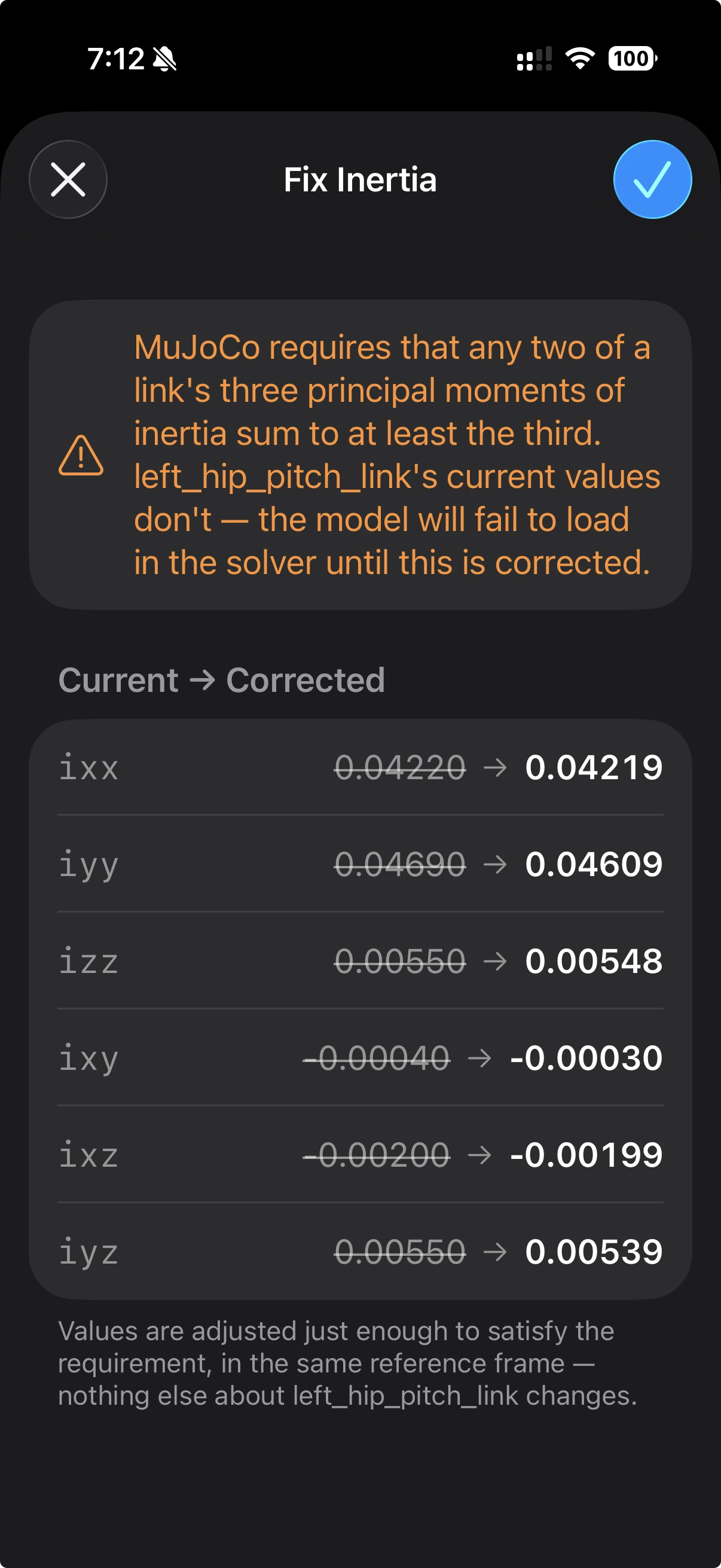
The Fix Inertia sheet for a link named left_hip_pitch_link. Here all six tensor values change slightly; a value that does not change is shown once, without a strikethrough.
The Fix Inertia sheet lists the six tensor values under Current → Corrected. Values that change show the old number crossed out beside the new one. Choose Confirm to apply the correction, or Cancel to leave the link as it was. Nothing else about the link changes.
From the error message
If the invalid inertia stops a simulation from loading, the error message names the link and, when ARMOR can match it to a link in your robot, offers Fix This. It opens the same sheet for that link. See Troubleshooting Simulation Errors.
On the whole robot
Fix All Inertias, next to Estimate All Masses in the Links section, scans every link and corrects each one that needs it. ARMOR first asks Fix All Non-Compliant Inertias? and tells you how many links are affected. Choose Fix All to apply. If no link needs a fix, it tells you Nothing to Fix.
How the correction works
The correction does not simply edit the diagonal values. ARMOR solves for the tensor’s real principal moments, then moves only the offending one back to just below the sum of the other two. It then rebuilds the tensor in the link’s original reference frame. The mass and center of mass are untouched, and a tensor that was already valid is never changed.
Next Steps
- Links for the full set of link properties, including inertial.
- ros2_control Actuators to add controllers. Controller gains are computed from mass and inertia, so estimate masses first.
- Troubleshooting Simulation Errors for other errors MuJoCo can report.