Multi-Robot Worlds & Robot Placement
ARMOR lets you compose a multi-robot MuJoCo simulation by placing more than one robot in a single world. Each robot runs in the same shared physics scene, has its own initial pose, and can have an independent fixed or free base. The full scene — all robots, the ground plane, obstacles, gravity, and scene lighting — exports as a single MJCF that runs identically on a desktop MuJoCo workstation.
Premium feature: Free projects support a single robot. ARMOR Premium unlocks placing as many robots as your scene needs.
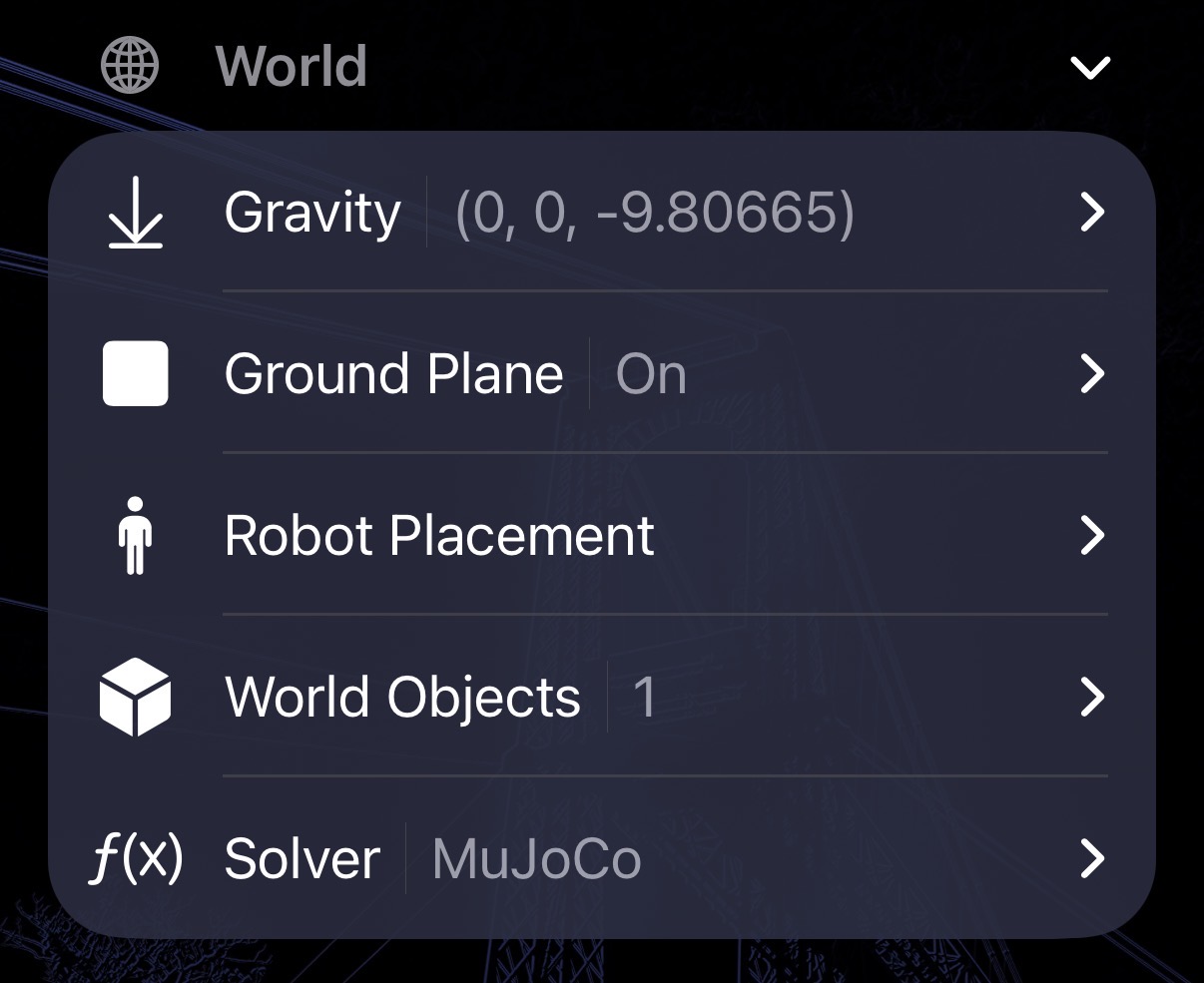
Adding Robots to the World
Open the World editor and tap Add Robot. You can populate a scene three ways:
| Method | What it does |
|---|---|
| Duplicate | Adds a second instance of a robot already in the project. The duplicate shares the original’s geometry and meshes — no extra storage. It is placed with a 0.314 m spatial offset so robots never overlap on arrival. |
| Import from another project | Copies a robot (including all its meshes and textures) from any other project in your library into this world. |
| Load from URDF | Launches the standard URDF importer to bring in a new robot from a file, iCloud, or another source. |
Each addition creates an independent robot instance in the world. You can rename, repose, and reconfigure each instance separately.
Fixed vs Free Base
Every robot instance has its own base type, chosen in the Robot Placement editor:
- Fixed (welded) base — the root link is anchored to the world frame and cannot move. Use this for arms, manipulators, or any robot that is mounted on a surface.
- Free-floating base — the root link is a free body subject to gravity and contact forces. Use this for mobile robots, humanoids, and quadrupeds that must move freely.
You can mix base types in the same world — for example, a fixed arm and a free-floating quadruped side by side in one simulation.
Initial Pose
Each robot’s starting position and orientation is set as a pose (X, Y, Z + Roll, Pitch, Yaw) in the placement editor. This is the state the simulation returns to when you tap Reset.
Removing a Robot
Tap a robot instance in the World editor list and choose Remove Robot. This removes the instance from the world; the underlying robot model and its assets remain in the project.
Simulation & Export
All robots in the world are compiled into a single MuJoCo model and simulated together in one shared physics scene. When you export a URDF & MJCF archive, the exported MJCF contains every robot — each in its correct pose with its correct base type — plus the ground plane, obstacles, gravity, and scene lighting. What you simulate on-device is exactly what you get on the desktop.
Next Steps
- Worlds & Robot Placement — overview of all world settings.
- World Objects — add obstacles and props for robots to interact with.
- ros2_control Actuators — how each robot instance’s actuators stay namespaced in a multi-robot scene.
- Exporting URDF & MJCF Archives — export the full multi-robot scene.