Settings
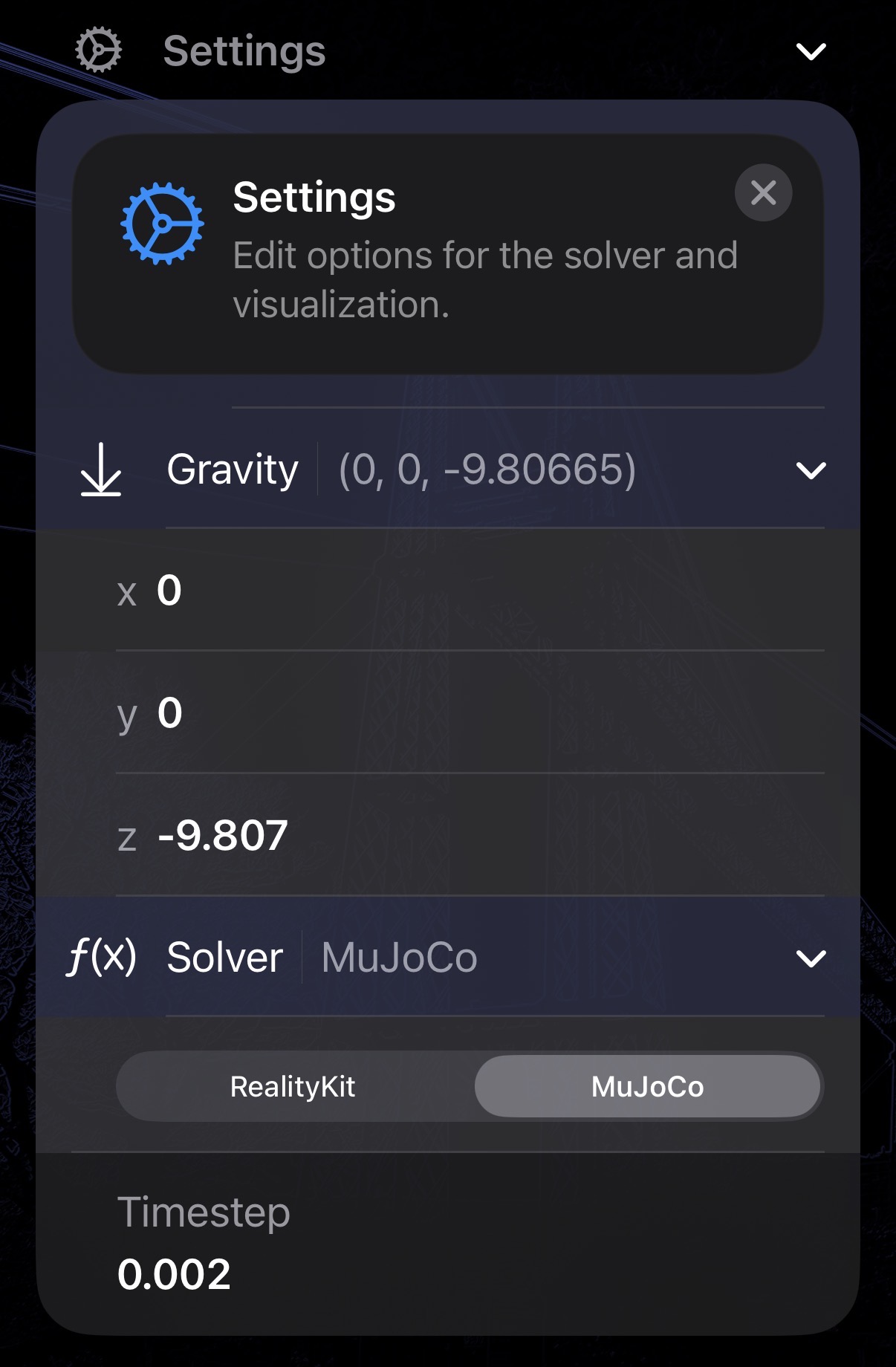
The Settings panel lets you configure global physics and solver options that apply to every robot loaded in the current session.
Open it by tapping the Settings button (gear icon) in the editor toolbar.
Gravity
The Gravity row shows the current gravity vector. Tap the row to expand it and edit each component individually:
| Field | Default | Description |
|---|---|---|
| x | 0 | Lateral component (m/s²) |
| y | 0 | Longitudinal component (m/s²) |
| z | −9.807 | Vertical component (m/s²) |
Standard Earth gravity points straight down, so only z is non-zero by default. Set all three fields to 0 to simulate zero-gravity, or tilt the vector to model inclined surfaces.
Solver
The Solver row lets you switch between two physics back-ends:
| Solver | Description |
|---|---|
| MuJoCo | High-fidelity articulated-body solver. Recommended for accurate joint dynamics and control. |
| RealityKit | Apple’s built-in physics engine. Useful for quick AR previews on device. |
Switching solvers resets all live simulation state.
MuJoCo — Timestep
When MuJoCo is selected, a Timestep field appears below the solver toggle. It controls the fixed integration step in seconds (default 0.002 s = 500 Hz). Smaller values increase accuracy but require more computation.
MuJoCo: Contact Parameters
Below Timestep, Override Contact Parameters lets you tune bounce and friction for every contact in the scene. See Contact Parameters.
RealityKit — Position & Velocity Iterations
When RealityKit is selected, two additional fields appear:
| Field | Description |
|---|---|
| Position Iterations | Number of position-correction iterations per frame. Higher values reduce interpenetration. |
| Velocity Iterations | Number of velocity-correction iterations per frame. Higher values improve contact stability. |
Scope
All settings in this panel are global — they affect every robot loaded in the scene, not just the currently selected one.