Materials
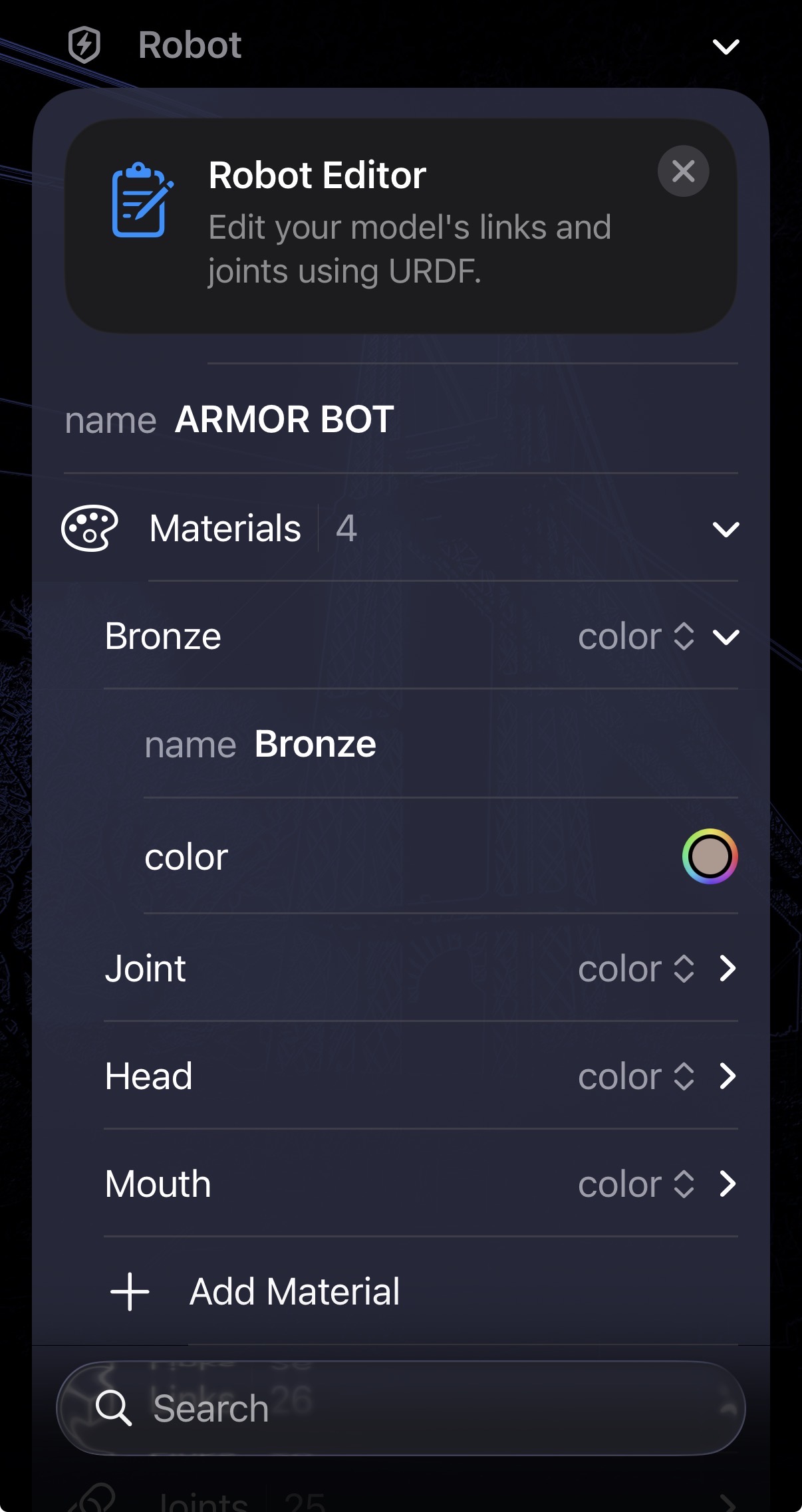
In 3D robotics modeling, a Material dictates the precise visual appearance of an underlying physical link. Just as a physical robot might be constructed from brushed aluminum, glossy red plastic, or carbon fiber, URDF materials allow you to define exact RGBA color properties or wrap external image textures globally across your model surface.
Materials are defined at the very top level of a robot model and can be referenced by name from any link inside the hierarchy. The ARMOR Materials editor lets you cleanly add, rename, and update these surface properties using native color pickers and file wrappers—ensuring perfect serialization without editing the raw XML. For the official specification, see the ROS URDF material documentation.
Editor Interface
Open the Robot Editor from the toolbar and tap the Materials row. Each material appears as a disclosure group dynamically mapping to the URDF format:
- String Data: Naming the material is handled securely via a standard text field.
- Categorical Data: Toggling between a solid color and an image texture is handled via a constrained picker.
- Color Selection: Specifying RGBA values automatically launches the deeply-integrated system color picker, generating the exact floating-point tuple automatically without typographical errors.
URDF Material Structure
A URDF <material> tag specifies exactly how simulated light interacts with the geometry. ARMOR’s editor exposes every valid property strictly matching the global specification:
Core Properties
| Field | Description |
|---|---|
| Name | A required unique string identifier (e.g., 'Bronze' or 'Chassis_Red'). Any link mapping to this name will instantly inherit its appearance. |
| Type | A categorized toggle switching the material strictly between an underlying color tuple or an external texture image. |
Color Mapping
When the material type is set to color, ARMOR invokes an interactive visual picker that writes directly to the standard URDF color tags:
| Field | Description |
|---|---|
| RGBA | A set of four floating-point numbers [r, g, b, a] ranging from 0.0 to 1.0 representing Red, Green, Blue, and the Alpha (opacity) channel. |
Texture Mapping
When the material type is set to texture, ARMOR swaps the visual input vector to a file-referencing string targeting an external 2D image asset:
| Field | Description |
|---|---|
| Filename | The relative path string tracking a 2D image asset (e.g., .png, .jpg) to be mapped sequentially over the referenced 3D geometry. |
Referencing Materials from Links
Once defined globally inside the editor, applying a material simply requires mapping its Name directly onto the link’s visual parameters.
<visual>
  <geometry>...</geometry>
  <material name="Bronze"/>
</visual>
When you update the core ‘Bronze’ material via the ARMOR system color picker, all links visually adopting that material instantly update across your entire 3D viewer!