Loading a URDF File
A core feature of ARMOR is the ability to load Universal Robot Description Format (URDF) files and their supporting assets, such as those created by industry professionals and major manufacturers.
The import menu is displayed as a sheet on the bottom of your screen, activated by tapping the Load button at the bottom of the sidebar view.
Don’t have a URDF file yet? See Finding URDF Files for where to source one, or browse the Robot Gallery for ready-to-import examples.
Supported Formats
ARMOR supports a variety of file formats, each serving a specific purpose in the modeling pipeline. URDF is the overarching robotics standard that defines the kinematics and dynamics of your model. For the 3D assets themselves, USDZ is the highest quality visual format in the list (though it is not commonly found natively within legacy URDF files). DAE and OBJ also serve as good visual formats, but they are a little older and more limited in their modern rendering capabilities. Finally, STL is the simplest format available, making it highly efficient and commonly used for calculating physical collision meshes.
| Format | Extension | Notes |
|---|---|---|
| URDF | .urdf |
Standard ROS unified robot description format |
| Xacro | .xacro |
URDF macro language — expanded on-device, see Xacro Support |
| USDZ | .usdz |
High-fidelity visual 3D object format (n/a for collision) |
| GLB | .glb |
Binary glTF, the standard web/Android 3D format, with embedded materials and textures |
| DAE | .dae |
Collada graphics format, for visual 3D objects (legacy) |
| STL | .stl |
Stereolithography files, useful for simple collision meshes |
| OBJ | .obj |
Wavefront object format, for visual or collision meshes |
USDZ, GLB, DAE, and OBJ import (and export) are powered by RealityKitFormats, ARMOR’s own open-source Swift package that wraps Apple’s ModelIO and RealityKit so a mesh in any of these formats loads and saves through one unified API.
Choosing an Import Method
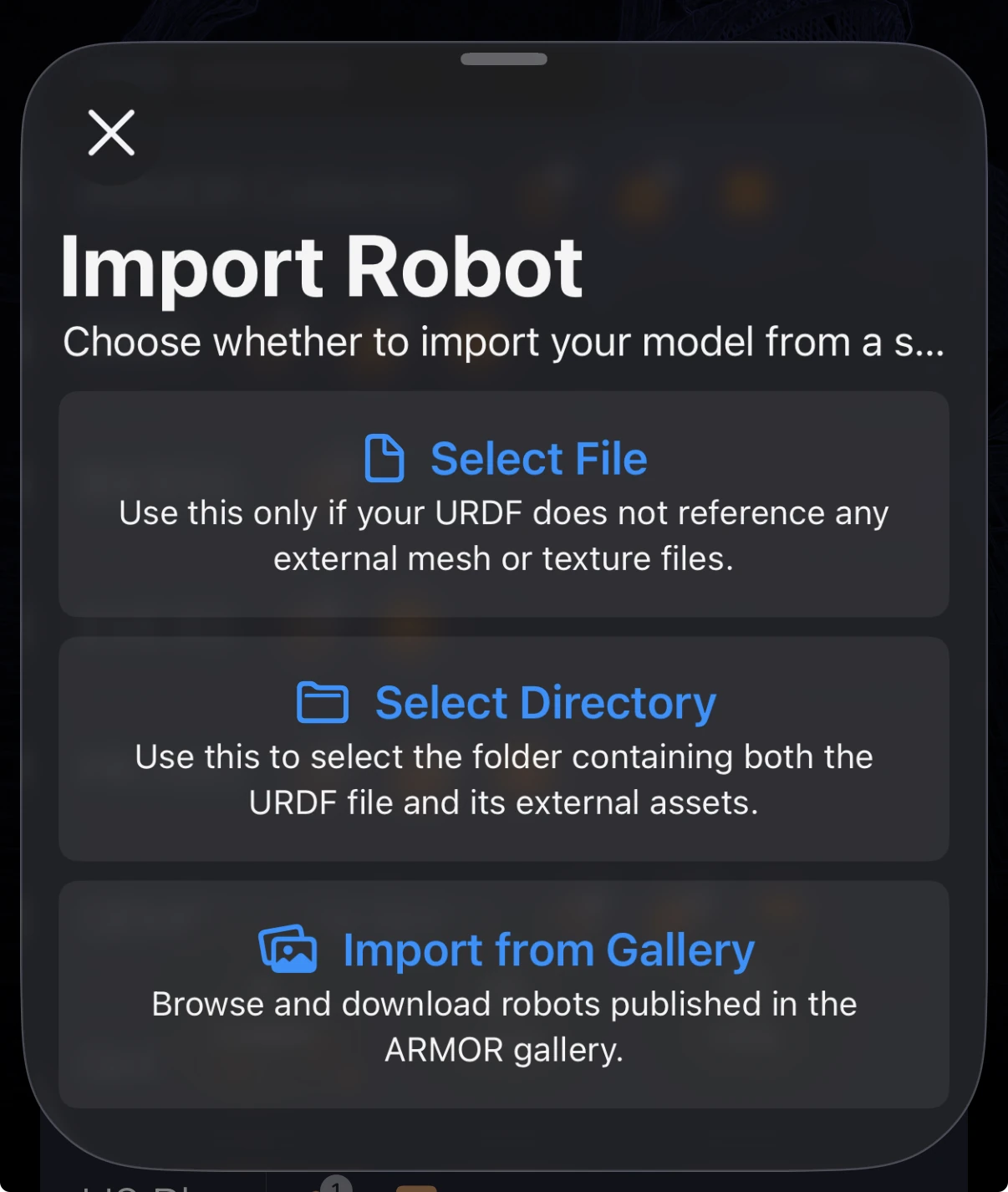
The first decision you will make is how to bring the robot in: from a single file, from a directory, or from the ARMOR gallery.
The Select File option is suitable for times that you have a single URDF file without any assets (external 3D mesh or image files).
However, in most cases you will select the Select Directory option.
This will allow the loader to access assets referenced in the URDF file.
The Import from Gallery option needs no files on your device at all: it lists every robot in the ARMOR gallery so you can pick one and download it.
Selecting Your File or Directory
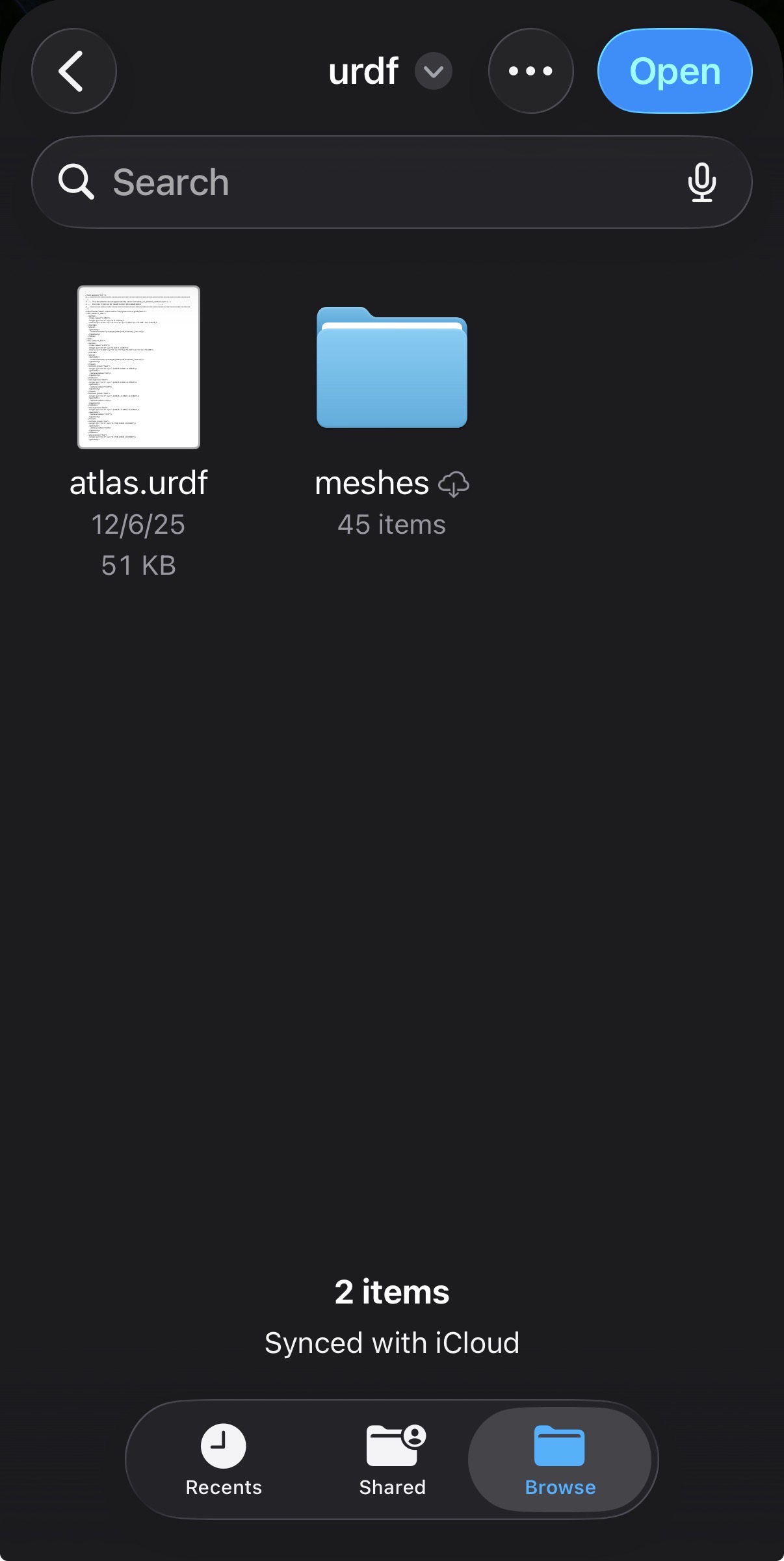
The Select File and Select Directory options both launch a native file importer, where you will select your file or directory.
A hint for the latter: choose a directory that is one or two levels above the URDF file itself, one that contains both the file and its assets.
If you chose the Select File option, the next screen will show a confirmation dialog where you can continue importing the selected file or choose a different one.
If you chose the Select Directory option, the next screen will show a list of URDF files in the directory you chose.
Tap on the file you would like to select, which will proceed with importing that file and its assets.
Validating
The next screen will show progress of the import, followed by the result, which will be one of three possibilities:
- The import was successful; you may exit and return to the sidebar to view the robot model.
- The import failed, usually indicating an invalid URDF file.
- The URDF succeeded, but one or more assets failed to load; you may choose to import anyway, or try a different file.
Mesh References
ARMOR resolves mesh paths relative to the URDF file location. Place mesh files (.dae, .stl, .obj, .usdz, .glb) in the same folder or a subfolder, and reference them using relative or package:// paths.
Troubleshooting
- Missing meshes: Ensure all referenced mesh files are in the same folder as the URDF, then re-import using
Select Directoryso ARMOR can access the full folder.