Links
In a robotic kinematic sequence, a Link represents a single rigid body component—akin to a human forearm, a vehicle chassis, or a drone’s propeller. Links serve three distinct roles simultaneously: they define the physical envelope used to calculate collisions, they hold the 3D meshes and colors you actually see rendered on screen, and they encapsulate inertial properties (like mass and center of gravity) required for realistic physics simulation.
The Links section of the ARMOR Robot Editor lists every rigid body defined in your model. Tapping a link row expands it, allowing you to edit its Inertial, Visual, and Collision properties using structured form controls rather than writing raw XML. For the official specification, see the ROS URDF link documentation.
Editor Interface
When managing a link’s properties, ARMOR dynamically maps XML hierarchies to intuitive inputs:
- Numeric and String Data: Properties like mass, physical dimensions, or names are handled using standard text fields.
- Categorical Data: Properties that require specific shapes (e.g.,
box,sphere,mesh) utilize pickers to ensure valid selections. - File Assets: Specifying a 3D mesh automatically launches an internal asset picker scoped to your loaded workspace.
Links can be edited in two ways:
- Editor Panel — access all links in a searchable list, organized into disclosure groups.
- Wizard Sheet — tap the button in the lower right of the 3D view to comprehensively edit the selected link one property at a time.
URDF Link Structure
A URDF <link> tag wraps three core sub-elements. All defined properties inside these elements are fully supported within the ARMOR editor:
Inertial Properties
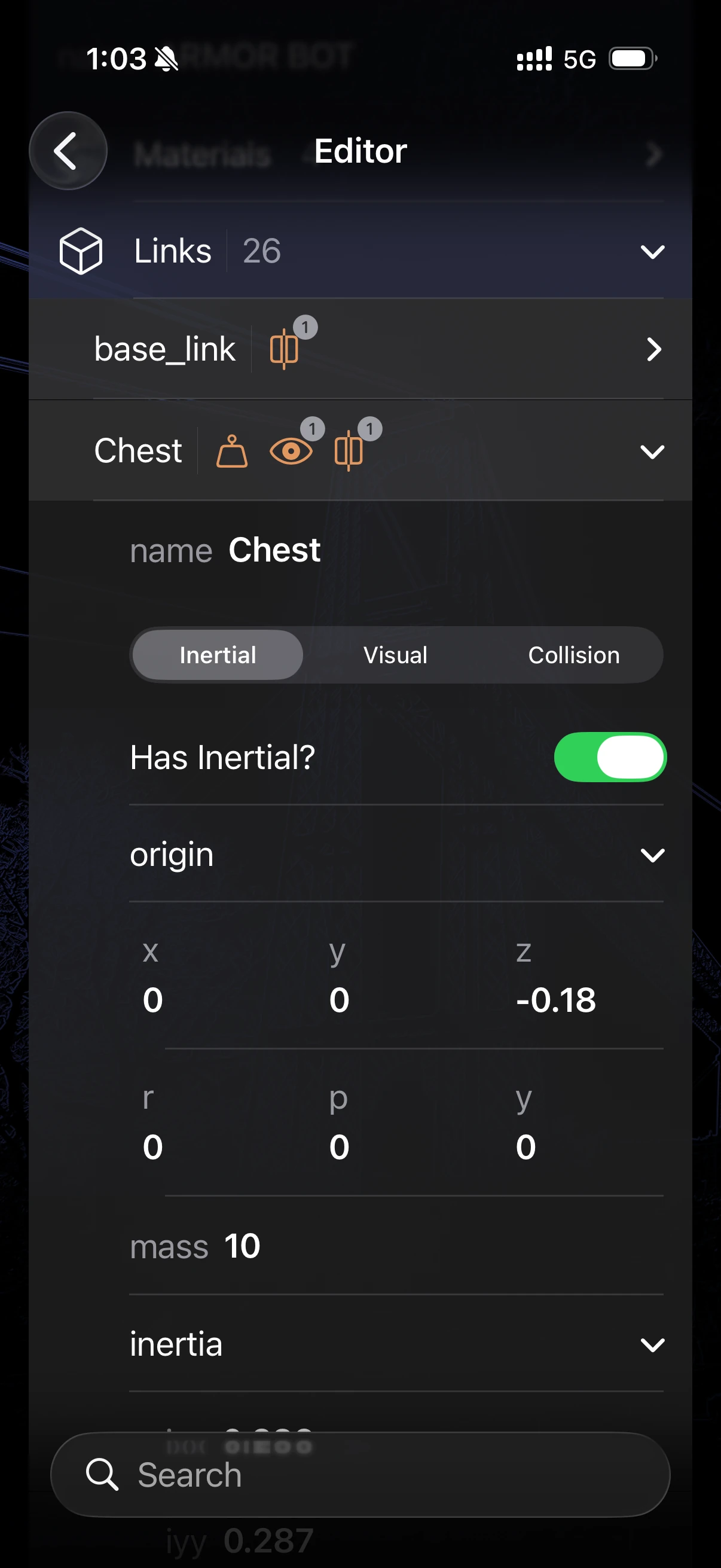
The <inertial> block controls the physical mass properties of the link, vital for physics simulators like MuJoCo. By toggling Has Inertial? off in the editor, you can omit these properties entirely (common for fixed base links or pure visual shells that shouldn’t affect physics).
| Field | Description |
|---|---|
| Origin | The spatial offset (x, y, z) and rotation (roll, pitch, yaw) of the center of mass relative to the link’s origin frame. |
| Mass | The total weight of the link strictly in kilograms (kg). |
| Inertia | The 3x3 rotational inertia tensor matrix (ixx, iyy, izz, ixy, ixz, iyz) representing mass distribution. |
Many URDF files ship with zero mass, no <inertial> block at all, or a tensor that MuJoCo rejects. The inertial editor can help: Estimate from Geometry computes mass and inertia from the link’s mesh, and Fix Inertia corrects an invalid tensor. For a whole robot, use Estimate All Masses and Fix All Inertias at the bottom of the Links section. See Mass and Inertia for how each one works.
Visual Properties
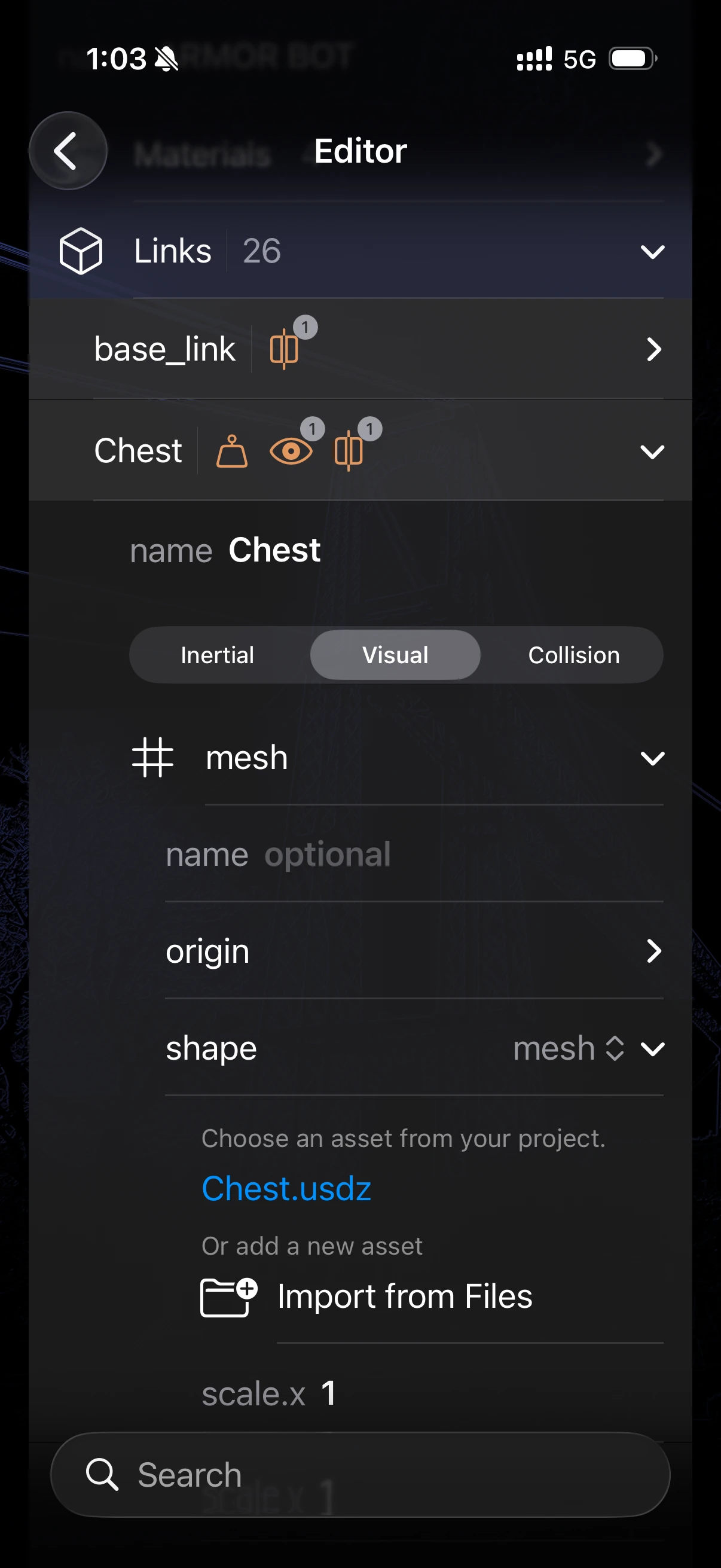
The <visual> block handles what the user physically sees on screen. A single link can contain multiple nested visual elements.
| Field | Description |
|---|---|
| Name | An optional string identifying this specific visual geometry. |
| Origin | The spatial offset (x, y, z) and rotation (roll, pitch, yaw) of the visual element relative to the link frame. |
| Shape | The specific geometry type: mesh, box, cylinder, or sphere (mapped via picker). |
| Material | The surface appearance mapped either to a named global material or a local color definition. |
If mesh is selected for the shape, additional Asset file-pickers and Scale (x, y, z) parameter fields become active.
Collision Properties
The <collision> block defines the invisible physical boundaries used to calculate interactions and prevent intersections. To optimize real-time simulation, these are often simpler primitive shapes rather than high-fidelity visual meshes.
| Field | Description |
|---|---|
| Name | An optional string identifying this specific collision geometry. |
| Origin | The spatial offset (x, y, z) and rotation (roll, pitch, yaw) of the collision boundary relative to the link frame. |
| Shape | The specific geometry type: mesh, box, cylinder, or sphere (mapped via picker). |