Built-In Help and Ask
ARMOR carries its own documentation. The help inside the app is generated from the pages of this site, so it says the same thing, and you can read it without leaving the editor. The text is bundled with the app and works offline. Images and videos load from the web when you open them.
Opening Help
Help opens as a window on macOS and as a sheet on iPhone and iPad. You can reach it from several places:
- The Help button at the bottom of the sidebar, and the Help button in the robot toolbar, open the full help. Ask can then answer questions about the robot you have selected or open.
- Small ? buttons next to a section open the page that explains it. They appear beside Materials, Links, and Joints in the robot editor, beside the sections of the World editor, in the Semantic editor, and in the Link and Joint creators.
- Some tips include a Read More action that opens Help on the right page.
On iPhone, a page opened from a ? button is shown inside the same navigation, so Back returns you to the editor you were in.
The Three Tabs
Help has three tabs: Browse, Ask, and Videos.
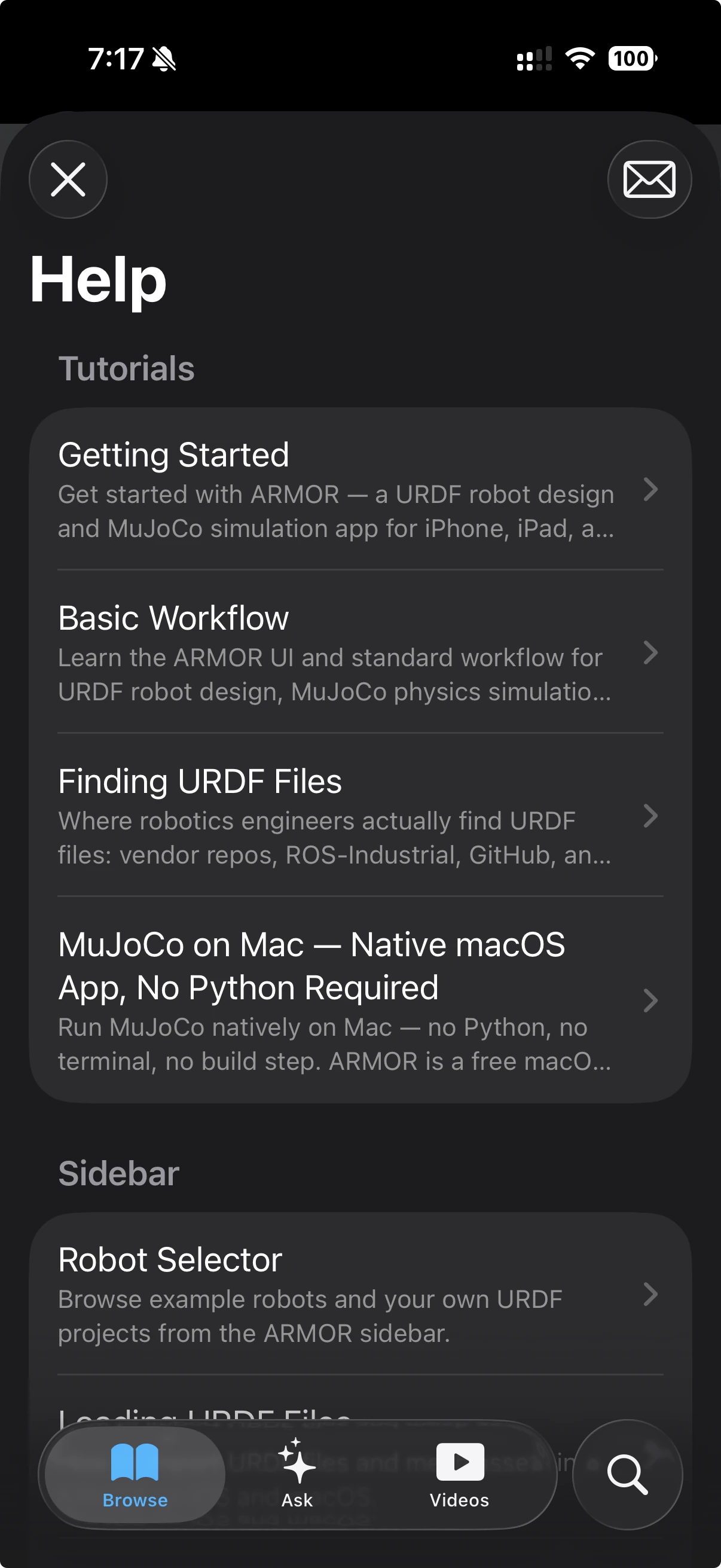
The Browse tab on iPhone, with the Feedback button at the top right and the Search button beside the tab bar. On Mac and iPad the page list stays visible as a sidebar beside the page you are reading.
Browse
Browse is the list of every documentation page, grouped into the same sections as the sidebar of this site. On Mac and iPad the list is a sidebar that stays on screen across all tabs. On iPhone, Browse shows the list, and search is a separate Search tab. Tapping a page opens it on the current tab, so Back returns you to where you were, even in the middle of a chat.
Search ranks the pages for you:
- A match in the page title counts most, then a match in a section heading, then the page description, then the body text.
- A page named exactly after your search term ranks above longer titles that only contain it.
- Common filler words, and words that appear on nearly every page such as “URDF” or “robot”, are ignored so they cannot match everything.
- Matches are highlighted, and the page scrolls to the first one.
Ask
Ask is a chat with an assistant that runs on your device using Apple’s Foundation Models. It needs iOS or macOS 26 or later. On earlier systems the Ask tab does not appear.
Ask a question in your own words, such as “How do I export an MJCF?” or “How are the shoulder joints connected?”. There are two kinds of question, and ARMOR handles them differently.
Questions about ARMOR
For a question about the app, Ask first finds the most relevant sections of these docs. It combines keyword search with an on-device understanding of meaning, so a question does not need to use the same words as the page. The on-device model then writes a short answer from those sections. A status line such as “Reading ARMOR docs…” shows progress.
Under the answer, Read more links open the pages the answer came from, ranked by how much each page is about your question. Links in those pages that lead outside the docs, such as to a GitHub repository, are offered as links that open in your browser.
Ask is built to keep working when the model cannot:
- If the model is unavailable, takes longer than 30 seconds for a step, or fails, Ask shows short summaries of the best-matching pages instead, with a Read more link on any summary that was shortened.
- If nothing in the docs fits, it says so and suggests rephrasing or using Feedback.
Questions about your robot
Ask can also answer questions about the robot you have loaded, such as what a joint connects, which way it moves, its range, where it is mounted, and what comes before and after it in the chain. These answers do not come from the model’s general knowledge. ARMOR works out the facts from your robot’s own data, and the model only puts them into words.
- Finding the joints. ARMOR matches the words in your question against joint names and the names of the links they move, so “left shoulder” finds the left shoulder joints. Words like “joint”, “robot”, or “connected” are ignored because they do not say which joint you mean.
- Computing the facts. For each joint it works out the parent and child link, the joint type, the axis in plain terms (for example “+Y, pitch, canted 16°”, expressed in the parent link’s frame), the range in radians and degrees, where the joint sits relative to its parent, and the joints before and after it. A left and right pair is described once, and the other side is only named. Up to six joints are described in detail for one question.
- Writing the answer. The on-device model drafts an answer from those facts, then rewrites it as flowing prose. ARMOR uses the rewrite only if it still names every joint, so the second pass can improve the wording but never remove content.
- Showing the numbers. Under the answer, a collapsed Joint details section lists the exact values: what each joint Connects, its Axis, Range, where it is Mounted, and the joints Before and After it, plus any mirrored joints. ARMOR builds this section from the robot data, not from the model.
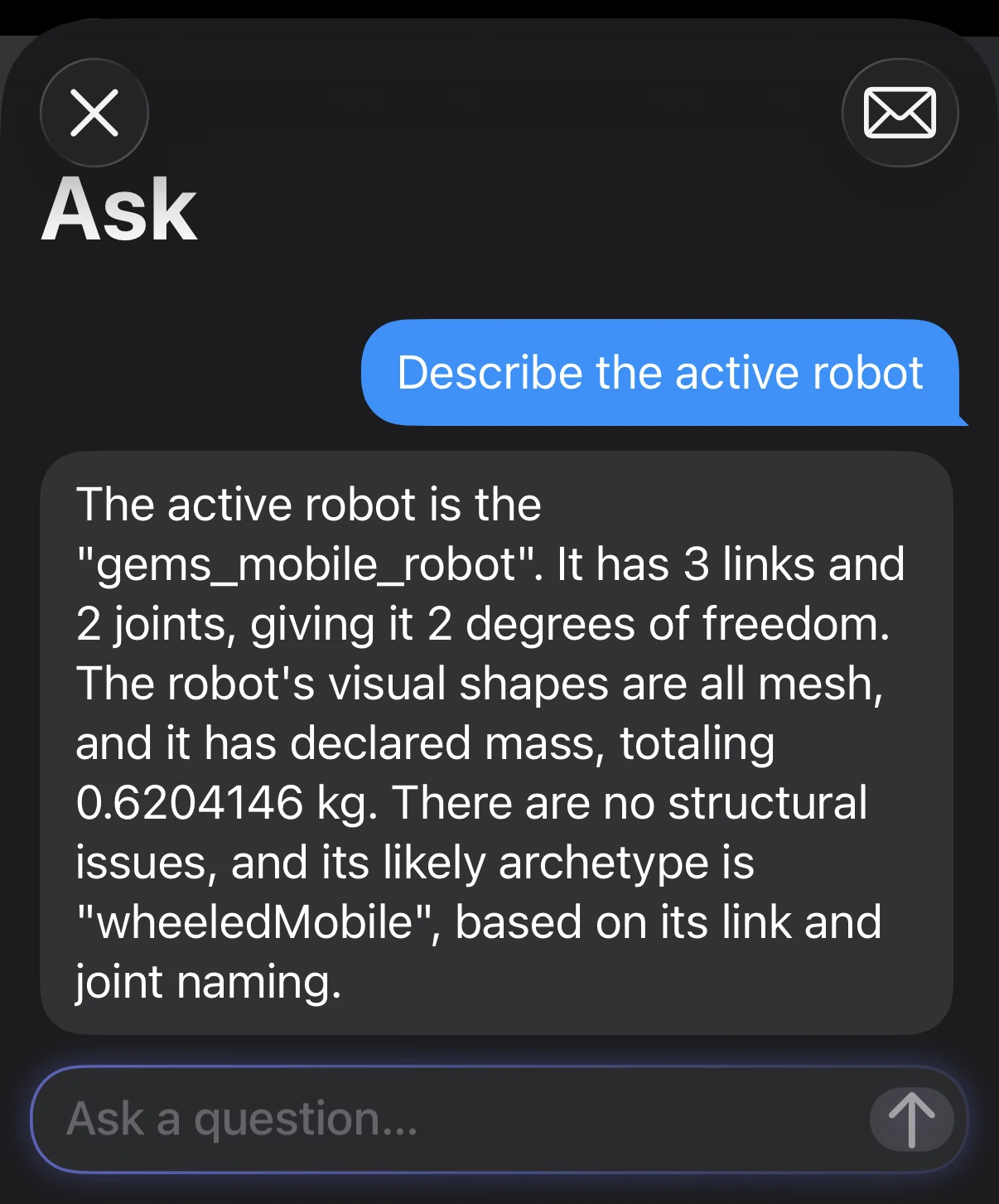
Ask describing the loaded robot. A question that names particular joints also gets the collapsed Joint details section described above.
For other questions about the loaded robot, such as its overall structure, problems found when it is validated, or missing mass data, Ask can look those up in the robot’s data instead of guessing.
A small on-device model can still get a minor detail wrong, or add a sentence about a neighboring joint. Treat the written answer as an explanation, and check the exact numbers in Joint details, which come straight from your robot.
When the model is not available
If a question needs the model and it cannot run, Ask tells you why instead of failing silently:
- The device does not support Apple Intelligence.
- Apple Intelligence is turned off. Turn it on in Settings.
- The model is still getting ready. Try again in a few minutes.
- The model does not support your language yet.
In every case the Browse tab and search still work.
Videos
Videos lists workflow guides from the DC-Engineer YouTube channel. A link to a video inside a documentation page appears as a thumbnail card, and opens in the YouTube app or your browser.
Languages
Help is available in English, German, Spanish, French, Italian, and Portuguese. ARMOR shows the language that matches your device, and uses English when your language is not one of these. Ask searches in that language and replies in it.
Feedback
A Feedback button is always available in Help. It opens a pre-filled email to ARMOR support. Use it when Ask cannot find an answer, or when a page is wrong or unclear.
Next Steps
- Getting Started for a first tour of ARMOR.
- Basic Workflow to load, edit, and simulate a robot.
- Troubleshooting Simulation Errors for what the error messages mean.