Robot Simulation on iPhone
ARMOR is an iPhone app for robot simulation. Load a URDF robot model, simulate it with the MuJoCo physics engine, and place it in the room around you in augmented reality, all on the phone. There is no computer, Python install, or ROS setup involved. ARMOR needs iOS 18 or later and is a free download from the App Store.
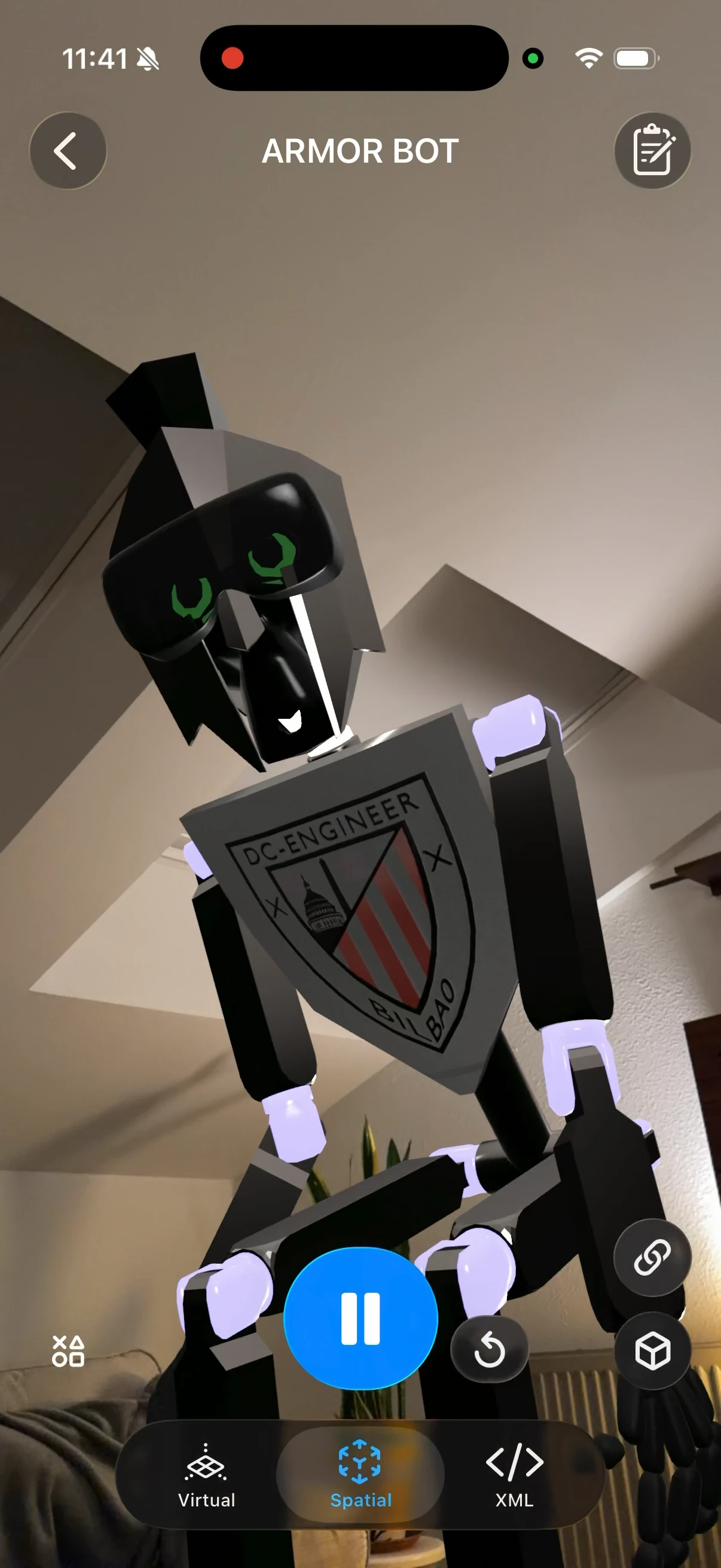
A robot placed in a room in the Spatial view. The tabs at the bottom switch between the Virtual, Spatial, and XML views.
What You Can Do on iPhone
- See a robot in 3D. Load a URDF and orbit, pan, and zoom around it with touch gestures. See Camera Controls.
- Simulate it with MuJoCo. Press Play to run real physics: gravity, contacts, joint limits, and ros2_control actuators. You can tune bounce and friction with contact parameters.
- Put it in your room. The Spatial view places the robot in augmented reality at real-world scale. See Augmented Reality.
- Edit it. Change joints, links, materials, and sensors with form fields instead of XML, and estimate mass and inertia when a model has none. See the URDF Editor.
- Export it. Save the robot and its world as a URDF package or a MuJoCo MJCF file to continue in desktop tools. See Exporting URDF & MJCF Archives.
- Carry on elsewhere. Projects sync with ARMOR on iPad and Mac over iCloud.
Get a Robot onto Your iPhone
There are three ways to bring in a robot model:
- From the gallery, inside the app. Tap Load, then Import from Gallery, and search over 100 ready-to-simulate robots, including arms, quadrupeds, and humanoids. See Robot Gallery & Deep Links.
- From the website. Every robot page in the gallery has an Open in ARMOR button that opens the app and downloads the robot for you.
- From your own files. Tap Load, then Select File or Select Directory to pick a URDF, or a Xacro file, with its meshes from the Files app or iCloud Drive. See Loading URDF Files and Xacro Support.
Start a Simulation
- Install ARMOR from the App Store.
- Import a robot, using any of the three ways above.
- Open it and press the blue Play button at the bottom of the 3D view. The same button pauses the simulation, and the Reset button beside it returns the robot to its starting pose.
If an imported model has no mass data, ARMOR can estimate it from the geometry so the robot can be simulated. See Mass and Inertia.
Robot Simulation in Augmented Reality
Tap the Spatial tab, point the camera at a floor or table, and tap to place the robot. You can drag it to reposition it and rotate it with a two-finger twist. On a device with a LiDAR scanner, the robot also casts a shadow onto the real surface.
A LiDAR scanner is recommended (iPhone 12 Pro and later) but not required. AR also works without one, with less accurate surface detection. See Augmented Reality for tips.
Built for a Small Screen
- Gestures. One-finger drag, two-finger drag, and pinch each control the camera, and you choose what each one does from the camera button. Pinching changes the field of view. See Camera Controls.
- Focused editing. On iPhone the robot editor opens as its own page with a back button, and the button in the lower right of the 3D view opens a step-by-step sheet for the selected link or joint. See Links and Joints.
- Help in your pocket. The Help button opens these docs inside the app, and on iOS 26 and later with Apple Intelligence you can ask questions about ARMOR or your robot. See Built-In Help and Ask.
Requirements
| Device | iPhone |
| Software | iOS 18.0 or later |
| Augmented reality | Works on supported iPhones. LiDAR (iPhone 12 Pro and later) is recommended. |
| Cost | Free to download. Placing more than one robot in a world needs ARMOR Premium. |
| Internet | Needed to download robots from the gallery. |
Common Questions
Can MuJoCo run on an iPhone? Yes. ARMOR runs Google DeepMind’s MuJoCo physics engine natively on the device, so a simulation needs no server and no computer.
Do I need ROS, Python, or a Mac? No. ARMOR reads standard URDF files, and expands Xacro files on the device. A ROS installation is not required to view, edit, or simulate a robot.
Which file formats can I load? URDF and Xacro for the robot description, and USDZ, GLB, DAE, STL, and OBJ for meshes. See Loading URDF Files.
Can I use the robot in desktop MuJoCo later? Yes. Export the project as a MuJoCo MJCF file, or a URDF package, and open it in any MuJoCo-based tool.
Next Steps
- Getting Started for a first tour of ARMOR.
- Finding URDF Files for where to find robot models online.
- Robot Simulation on iPad for a larger screen with the editor beside the 3D view.
- MuJoCo on Mac for the native macOS app.