Robot Simulation on iPad
ARMOR turns an iPad into a workspace for robot simulation. Load a URDF robot model, simulate it with the MuJoCo physics engine, and keep the editor open beside the 3D view while you work. It runs on the iPad itself, with no computer, Python install, or ROS setup. ARMOR needs iPadOS 18 or later and is a free download from the App Store.
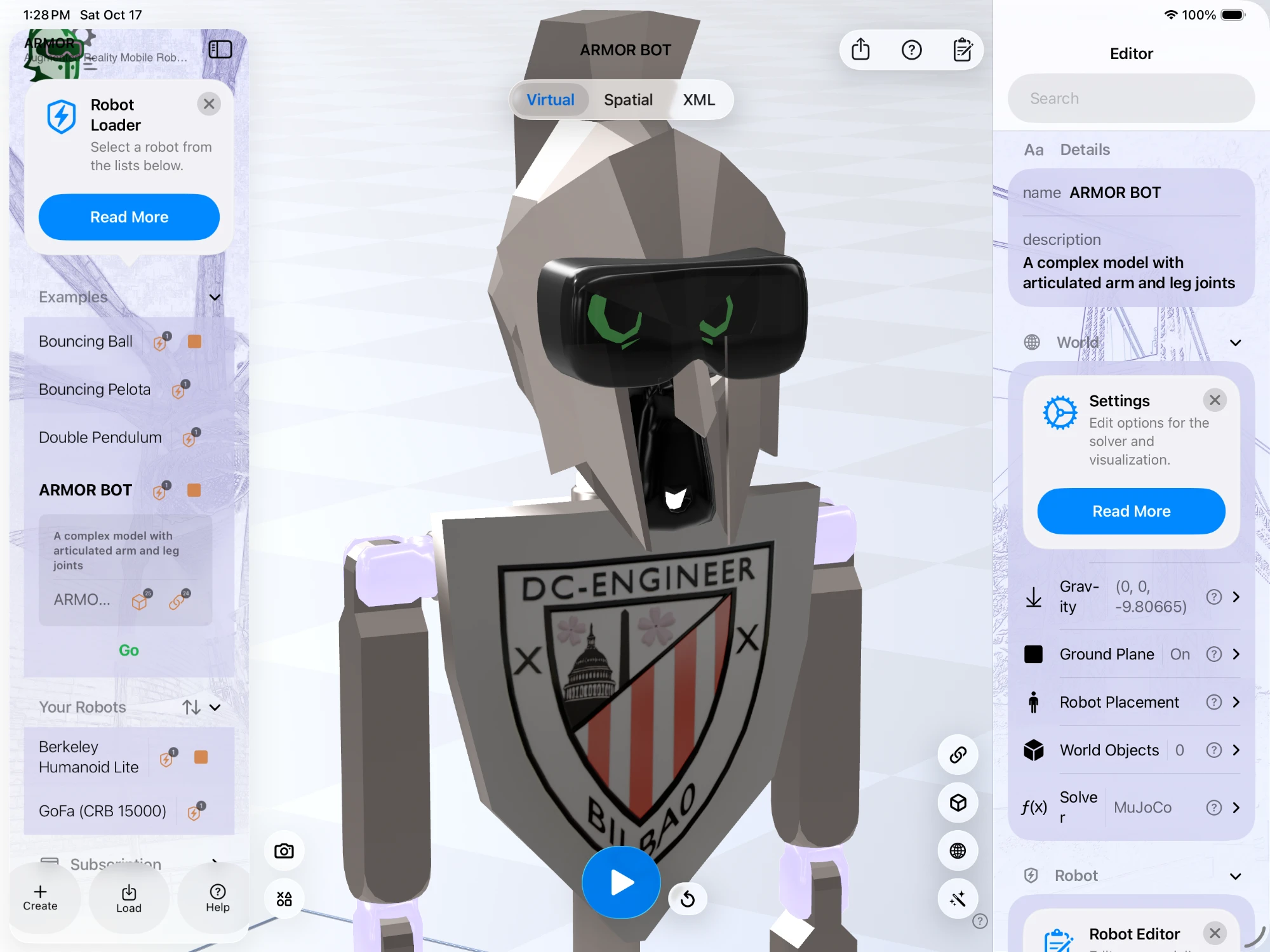
On a full-width iPad window, the robot list, the 3D view, and the editor sit side by side.
A Workspace for the Larger Screen
On iPad ARMOR uses the full width of the screen:
- The robot list stays visible. Your projects and the examples are in a sidebar, with the Create, Load, and Help buttons at the bottom, so switching robots is one tap. See Robot Selector.
- The editor stays beside the 3D view. Tap the Edit button in the toolbar to open the robot editor as a panel next to the robot, and tap it again to hide it. You can edit a joint limit or a link’s mass and keep orbiting the robot at the same time. See the URDF Editor.
- Help is one tap away. The Help button opens these docs as a sheet with the page list always visible, and Ask answers questions about ARMOR or your robot. See Built-In Help and Ask.
In a narrow window, such as a small Split View or Slide Over, ARMOR switches to the same single-column layout as on iPhone.
Build and Simulate Whole Scenes
The extra room helps most when you are building a world rather than looking at one robot:
- Place several robots in one scene with their own poses and base types. Free projects support one robot, and ARMOR Premium removes that limit. See Multi-Robot Worlds.
- Add a ground plane and world objects such as boxes, spheres, cylinders, and meshes.
- Tune contact parameters to make a dropped object bounce, and set gravity and the timestep.
- Press Play to run the MuJoCo simulation, and Reset to return everything to its starting pose.
- Export the whole scene as a MuJoCo MJCF file with Exporting URDF & MJCF Archives.
Teaching and Demonstrating Robots
A larger screen is also easier to share across a desk or a classroom table. Some features that work well for showing how a robot is built:
- Turn on the Joints overlay in View Options to draw each joint’s frames, connecting line, and axis over the model. See Camera Controls.
- Pose the robot with saved joint states from the Semantic editor.
- Load a real robot from the gallery, such as an arm, a quadruped, or a humanoid, with Import from Gallery. See Robot Gallery & Deep Links.
Augmented Reality on iPad
The Spatial tab places the robot in the room at real-world scale, the same as on iPhone. A LiDAR scanner is recommended (iPad Pro 2020 and later), but AR also works without one, with less accurate surface detection. See Augmented Reality.
Requirements
| Device | iPad |
| Software | iPadOS 18.0 or later |
| Augmented reality | Works on supported iPads. LiDAR (iPad Pro 2020 and later) is recommended. |
| Cost | Free to download. Placing more than one robot in a world needs ARMOR Premium. |
| Internet | Needed to download robots from the gallery. |
Common Questions
Is ARMOR on iPad the same app as on iPhone? Yes. It is one app for iPhone and iPad, with a layout that adapts to the screen. Your projects sync with iPhone and Mac over iCloud.
Can I run MuJoCo on an iPad? Yes. ARMOR runs Google DeepMind’s MuJoCo physics engine natively on the iPad, with no server or computer.
Do I need ROS or Python? No. ARMOR reads standard URDF files, and expands Xacro files on the device.
Can I take the robot to my computer? Yes. Export the project as a MuJoCo MJCF file or a URDF package, or open the same project in the Mac app.
Next Steps
- Getting Started for a first tour of ARMOR.
- Worlds & Robot Placement to build a simulation scene.
- Robot Simulation on iPhone for the pocket-sized workflow and AR.
- MuJoCo on Mac for the native macOS app.